DaVinci Resolve Forum

Register for a free account now!
This is the place to discus everything about the free video editing software DaVinci Resolve. Members help other members. Reserve your preferred username before someone else takes it.

Questions about R3D RAW playback

ButtWyperVyper

New Member
Hello Everyone!

This is my first post here, so apologies if I miss any rules.

I'm posting because I feel I have a misunderstanding of all the factors that contribute to smooth playback within Resolve and would love any pointers anyone may have.

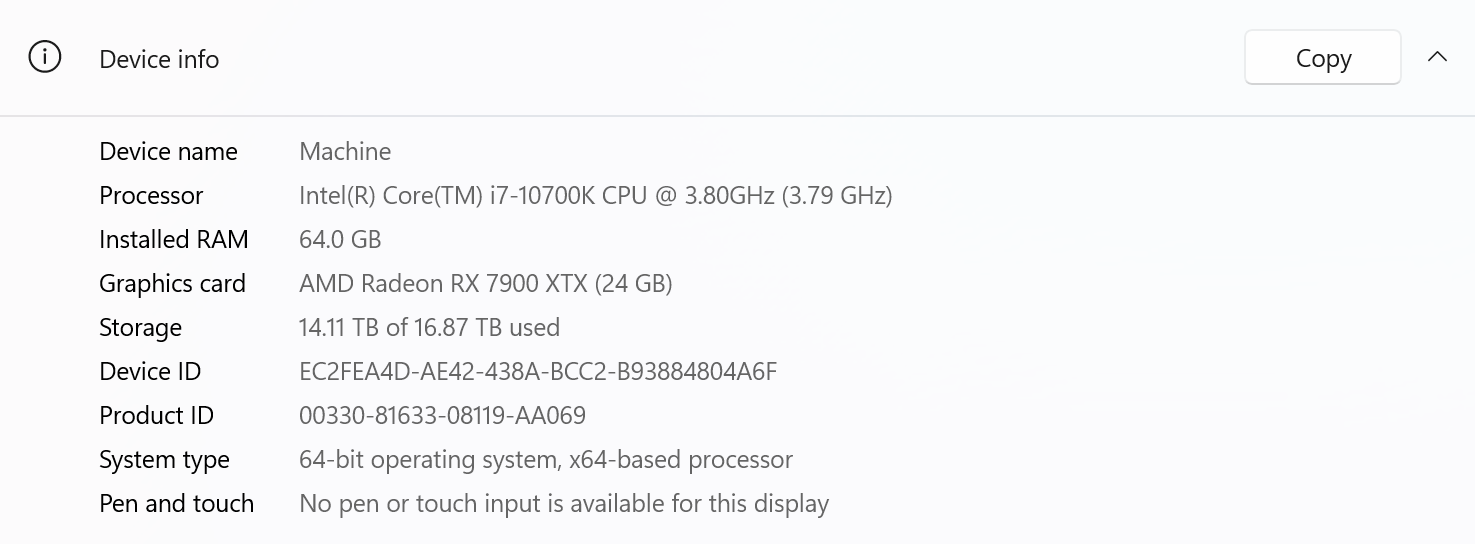
You see, I recently built my first PC with the intention of it functioning as an editing/color grading machine, however the performance I've gotten out of it so far hasn't been as stellar as I thought it would be. I've posted my specs below.

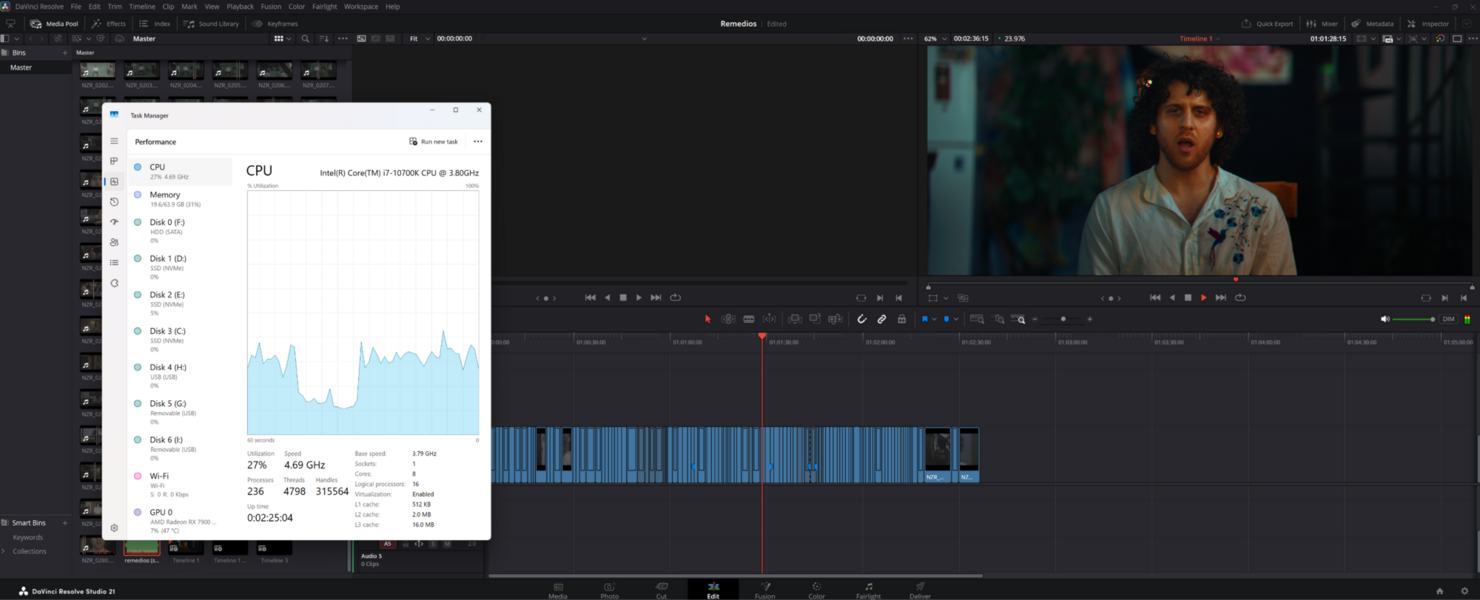
My understanding was that video playback was mostly tied to the GPU. Therefore, when building the PC, I prioritized a graphics card that I felt would be more than capable (based on the research I did). Yet, when testing, I am still not able to get smooth playback at the highest settings. In fact, my performance isn't substantially better than it was on my old machine (I upgraded from a NIVIDIA 360ti, for reference). I can get smooth playback when I adjust the RAW Decoding down to "Quarter Res. Good," but the intention was the build a machine that would allow me to play my footage back at the highest settings possible. Most confusingly, when checking my Performance within Task Manager, I am not seeing any meaningful bottlenecks. My GPU, CPU, and memory usage all seem to be relatively far from topped out. Infact, my CPU usage is higher when I drop my Decoding settings down to Quarter Res. Good.

I have also posted screenshots of my Performance window when playing back at various Decoding qualities

I purposefully left my CPU un-upgraded, as my understanding was that the GPU was the underpowered part of my build, and I wasn't seeing significant CPU usage withing Task Manager. Is there perhaps something about that I am misunderstanding?

Some things to note from my own testing:

  • Changing the Timeline Playback Resolution doesn't affect my playback speed whatsoever. I can play it back just as fast at Full as I can at Quarter
  • The only thing I have found so far that has changed my playback speed is changing the Decoding. At Full Res. Premium I am getting about 17fps. At Half Res. Good I am getting about 21fps.
  • Changing "Use GPU for R3D" from "Debayer" to "Decompression And Debayer" doesn't seem to have any significant effect
  • On my old computer I noticed a fairly large change in playback speed when I swapped my camera from the OG RED Komodo to the Nikon ZR
  • Turning on or off my color grade doesn't seem to have any significant effect on playback

So I guess my question is, what am I missing about RAW video playback that I could change/upgrade/better understand? What would I need to change about my build to get faster playback? Clearly I am missing some piece of the puzzle, and I would love some tips on where to start looking for it.

Thank you for taking the time to read a long post!
 

Attachments

  • Screenshot 2026-10-30 154041.png
    Screenshot 2026-10-30 154041.png
    92 KB · Views: 6
  • Screenshot 2026-10-30 153634.png
    Screenshot 2026-10-30 153634.png
    648.4 KB · Views: 6
  • Screenshot 2026-10-30 153732.png
    Screenshot 2026-10-30 153732.png
    595.8 KB · Views: 6
  • Screenshot 2026-10-30 153812.png
    Screenshot 2026-10-30 153812.png
    569.4 KB · Views: 5
NVidia GPUs are much better for color grading than AMD, but the details about core count, generation, VRAM and memory bandwidth all count. Here's a comparison in a rough chart.
RX 7900 XTX RTX 3060Ti RT3080Ti
cores: 6144 4864 10,240
generation: 1 gen old 2 gens old 3 gens old
VRAM: 24 GB 8 GB 12 GB
MemBand: 383 bit 256 bit 384 bit

The best place to put your money into for color grading (especially if you have QuickSync from Intel working for you as an iGPU) is CUDA core count. I'm afraid if you spent $1799+ for that AMD card it was too much and wrong card. Return it if you can. RTX 5070 Ti is faster for color grading. I'll write more later
 
GPU aside for a minute, R3D processing (ie just viewing it) at 6k is very intensive for any card. Color grading is not generally a realtime playback sport. You grade a frame, and it applies to a clip. If I want to see how different parts of the clip look with a heavy grade, I've learned to click to move the shuttle to a difference section of that clip and not scrub which can make my 3080Ti choke really hard and get caught in a death spiral. If you really want to see how that clip or a scene looks in realtime, you'll need to use User Rendering or Smart Rendering and manage that massive cache of hundreds of thousands of files it creates. If you don't know you can fill a 1 TB drive pretty quickly if you fail to clear it. There are cases when my export won't effectively work on a 15 minute short film with a very heavy grade, but if I set it to Smart Render, let it chew away and go from red line to blue line in the timeline and then click the checkbox in the Export that says it can use rendered frames, everything FLIES when it comes time for export.

The Mac color graders don't get realtime playback with a heavy grade and neither do the RTX 5080 graders. Everyone's grade eventually slows the experience below realtime. That you're having the problem with the grade turned off (Shift D) is a massive problem. That should not be happening.

It's a terrible time, as you I'm sure understand, to have to pay for a good GPU. I bought a used 3080 Ti for ($509) in January, to build into a new color grading PC. I chose a used 3080 Ti because it was 1 step below the top RTX card for that generation with 10,240 CUDA cores and has a nice wide memory bus. Your new AMD and your old 3060Ti both have core deficit compared to the highest end PC GPUs with 6144 and 4864 cores respectively. Puget Systems' initial testing of the 7900 XTX was positive, and they remarked that the RAW processing was much better than previous AMD cards. Can you describe what resolution R3D you're editing and do you get realtime playback of 24fps before adding any color/fx?

Prices are increasing SO FAST right now it's impossible to spot a great value.
 
Last edited:
Hey! @ButtWyperVyper,
Welcome to the community.

First, I would like to comment on what @KarlInSanDiego said.
Both AMD and NVIDIA process math, color, and LUTs identically inside the DVR's internal software engine, rather than a proprietary hardware filter on a graphics card.

NVIDIA (CUDA): NVIDIA cards typically hold an advantage for heavy AI-driven grading tools and effects (like Magic Mask, Neural Engine noise reduction, and Super Scale), as Resolve's neural processing stack is heavily optimized around CUDA architecture.

AMD (OpenCL): AMD cards perform exceptionally well on the Color page for standard node-based grading and raw timeline playback, and they frequently offer higher VRAM capacities at lower price points, which is crucial for handling heavy 4K/8K timelines.

You’ve hit on one of the most common points of confusion when building a heavy-duty editing rig: RAW video playback is almost entirely a CPU/decompressor and memory bandwidth bottleneck, not a GPU bottleneck.

Your graphics card (the RX 7900 XTX) is a monster for GPU-accelerated effects, OpenFX, Fusion, and rendering. Still, raw debayering (especially compressed RAW formats like RED R3D) relies heavily on single-core CPU performance and instruction sets to decompress frames before passing them to the GPU.

I have a list of images showing how I’ve set up DVR Studio on my CPU. My program is on my primary M.2 drive, and the folders I created are on a secondary M.2 drive.
Note: The following images are located under DaVinci Resolve > Preferences

image-1.png

Memory and GPU: Since you are using an AMD GPU, follow these setup guidelines.

Memory Configuration
• Limit Resolve memory usage to: Max this setting out.
• Limit Fusion memory cache to: Max this setting out.

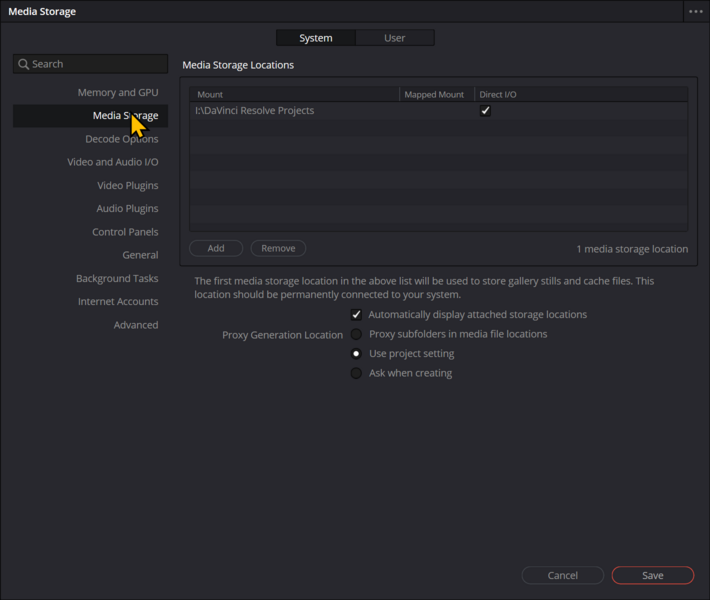
image-2.png

Media Storage: I created a second folder on a 2nd M.2 drive for my media, cache, and resources. The M.2 drive is faster than a SATA SSD.

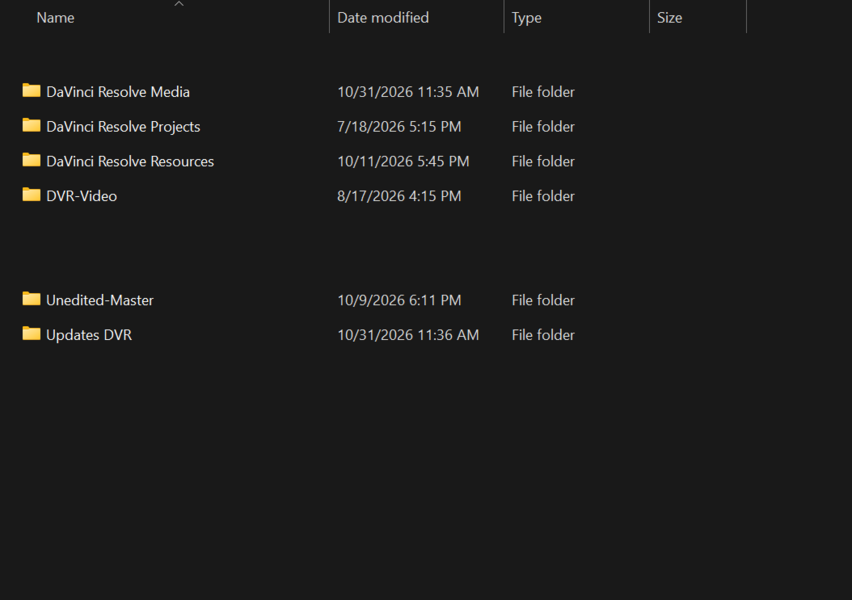
Just a quick view of my folder structure on the second M.2 drive.

image-3.png

Folder DaVinci Resolve Projects: I have the following folders that DVR points to to improve speed:
  1. .gallery (notice the “.”; this will come up later.)
  2. Auto-Backups
  3. Cache and Stills
  4. CacheClip
  5. Project Libraries
  6. ProxyMedia
The Resources folder holds many static items I pull from, such as Greenscreen FX, Fusion Compositions I create, sound effects, and more.

Decode Options:
Select the following:
  1. Use GPU for Blackmagic RAW decode (This should speed up your current settings)
  2. Decode H.264/H.265 using hardware acceleration.
  3. AMD
  4. Always use full-resolution media for AI Tools.
  5. Use GPU for R3D (select Decompression and debayer)
Do Not Select These:
  1. Use easyDCP decoder (unless you are using encrypted Digital Cinema Packages)
  2. Automatically refresh growing files in the media pool (inconsistent update intervals, and creates performance issues on disk, plus more)
  3. Stream files during download from Blackmagic Cloud (primarily used for project files and project media)

The remaining settings under Preferences are primarily for professional studios. You can check the General Area if you'd like.

Playback > Timeline Resolution
Handles On-Screen Display only. I leave this set at: Full
Playback > Render Cache
Set this to Smart

Gear Icon (located at the bottom right of DVR)
Master Settings (only settings you may need to change).
• Timeline Resolution: Handles the frame size and working canvas that sets your video quality and aspect ratio.

Optimized Media and Render Cache:
You are running an AMD GPU, so that these settings will give you the best results.
• Proxy media resolution: Choose automatically
• Proxy media format: DNxHR LB
• Optimized media resolution: Choose automatically
• Optimized media format: DNxHR LB
• Render cache format: DNxHR SQ

Working Folders area:
• Project media location: Mine is set to I:\DaVinci Resolve Resources\Video Creation\Projects\DVR-Files
• Proxy generation location: Mine is set to: I:\DaVinci Resolve Projects\ProxyMedia
• Cache files location: Mine is set to: I:\DaVinci Resolve Projects\CacheClip
• Gallery stills location: Mine is set to: :\DaVinci Resolve Projects\.gallery (notice the “.”)

Remember, DVR has Render Cache. We turned it to "smart" earlier. You should see a red or blue line above clips with heavy effects. Sometimes you may need to give the program a little time to play that clip smoothly in the timeline.

hope these adjustments help you get the extra speed you’re after. Let us know how it works out!
 
Are you using DaVinci Resolve Studio (paid) or free version? I don't think this matters for RAW playback, but thought I'd clarify.
Can you explain what resolution the footage is, and what resolution timeline you're using? Most editors and colorists will use HD timeline settings until they need to create Magic Masks for secondary grading. Magic Mask in 4k results in better refinement. To my knowledge, there's no other good reason to color in 4k and it's roughly a 4x strain vs. HD.
 
If DaVinci has: Use GPU for R3D "Debayer" & "Decompression And Debayer" (which they implemented 6 years ago), then why would you suggest that the CPU is responsible for doing that and that can be the limiting playback speed factor for RAW or specifically R3D? I see old articles about NVidia/CUDA working with RED on the API, but no actual confirmation that RED's SDK utilizes AMD GPU for Debayering and Decompression. The decompression is hard enough that it's a bottleneck when left to an older Intel GPU single thread to do on its own.

Here's an article mentioning how to goose your AMD driver if DaVinci's fighting you.
 
@KarlInSanDiego
Ah, good catch—I completely glossed over the CPU specs in the OP's initial post! Paired with an i7-10700K, that explains a lot. Even with the GPU handling decompression, an older 10th-gen chip running single-threaded file parsing will bottleneck heavy 6K/8K R3D streams before they even hit the PCIe bus. My bad for missing that detail in the original specs!

About the article:
That article is spot-on if Resolve isn't detecting the AMD card at all (forcing OpenCL or cleaning up bad drivers). But even with the GPU detected and doing the debayering, the CPU and system bus still have to unpack and feed those raw streams. If single-core throughput stalls, the GPU just sits around waiting on data.

@ButtWyperVyper
I know you said you recently built the new system, and to see any real significance, you would need to update your entire system again. That would include moving from DDR4 to DDR5 in most cases, and at current RAM prices, the memory would probably cost as much as the new CPU you go with.
 
Back
Top