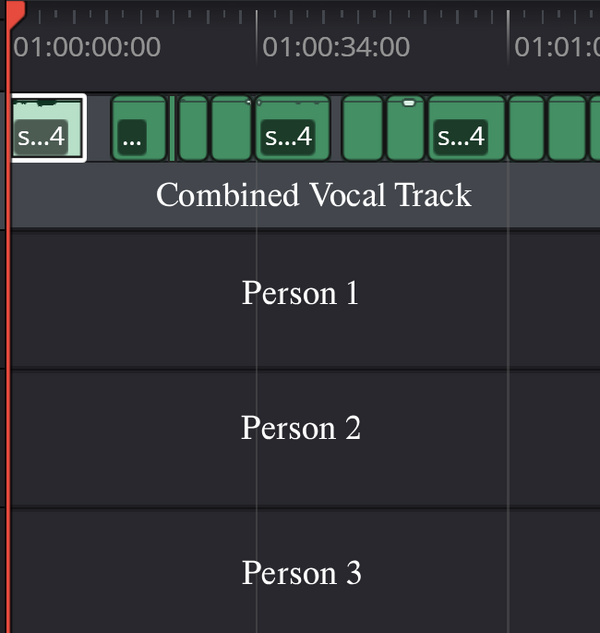
This looks like the right way to go. It's how the pros do it. Davinci training covers this briefly, but they simply show making cuts between speakers (Cntl B/Cmd B). Use J-K-L to play forward and backward. Hold K and tap J or L to step one frame to get some precision or hold K and then hold J or L to move at half speed.. Then cut and move to the next. Finish that, as a next step move to new tracks. To save time, consider leaving one speaker on the original line. Make a copy of that original track if you need it for intro, questions at the end or whatever.
To drag a clip without misaligning it, click, hold shift, and drag.
Once you've got them all on separate tracks, you can compress the whole timeline (Shift Z) select all the clips in a track by left click mouse dragging, then right click in any one of them and select Normalize. That'll get things pretty close. If some speakers get quiet and loud (inconsistent volume) learn to use the Compressor to bring up the quiet parts, and bring down the loud ones for the whole track without doing surgery on every errant section. This will make all speakers voices much more audible. If there are a few clips that are still too quiet or too loud, then and only then do you start doing surgery on words or phrases holding Alt and clicking on the volume line in two places on either side of the offending sound byte. Then drag the volume line up or down. If you select a whole clip, you can bump volume with Ctrl Alt - / Cmd Opt - and Ctrl Alt = / Cmd Opt =.
I'd do the volume fine tuning on the Fairlight page with the benefit of meters to help you be accurate without relying on your ears.
This is an excellent tutorial for getting all your levels right using specific tools and techniques in Davinci. It's aimed at setting for YouTube volumes, but the techniques are universal and worth learning.